

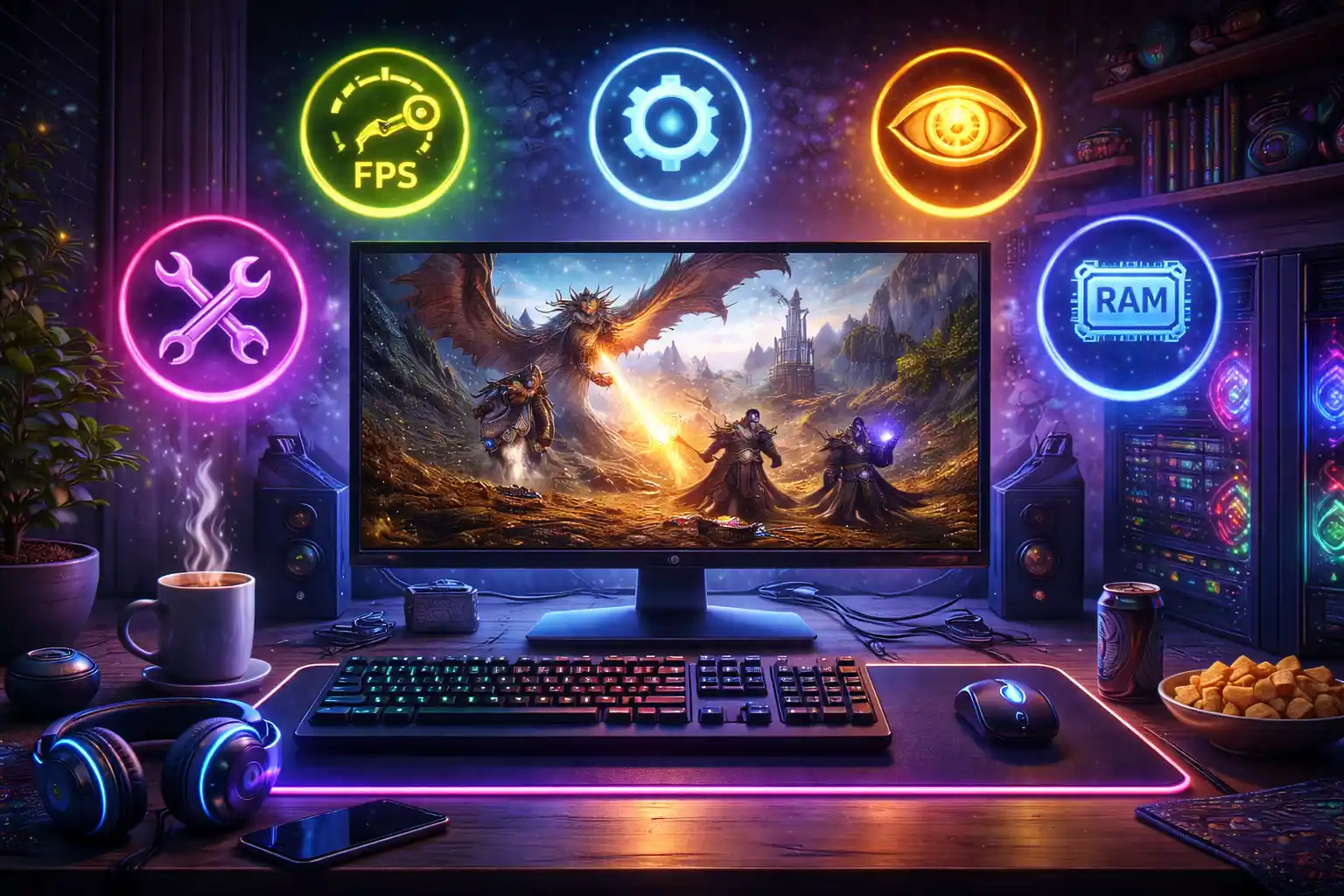
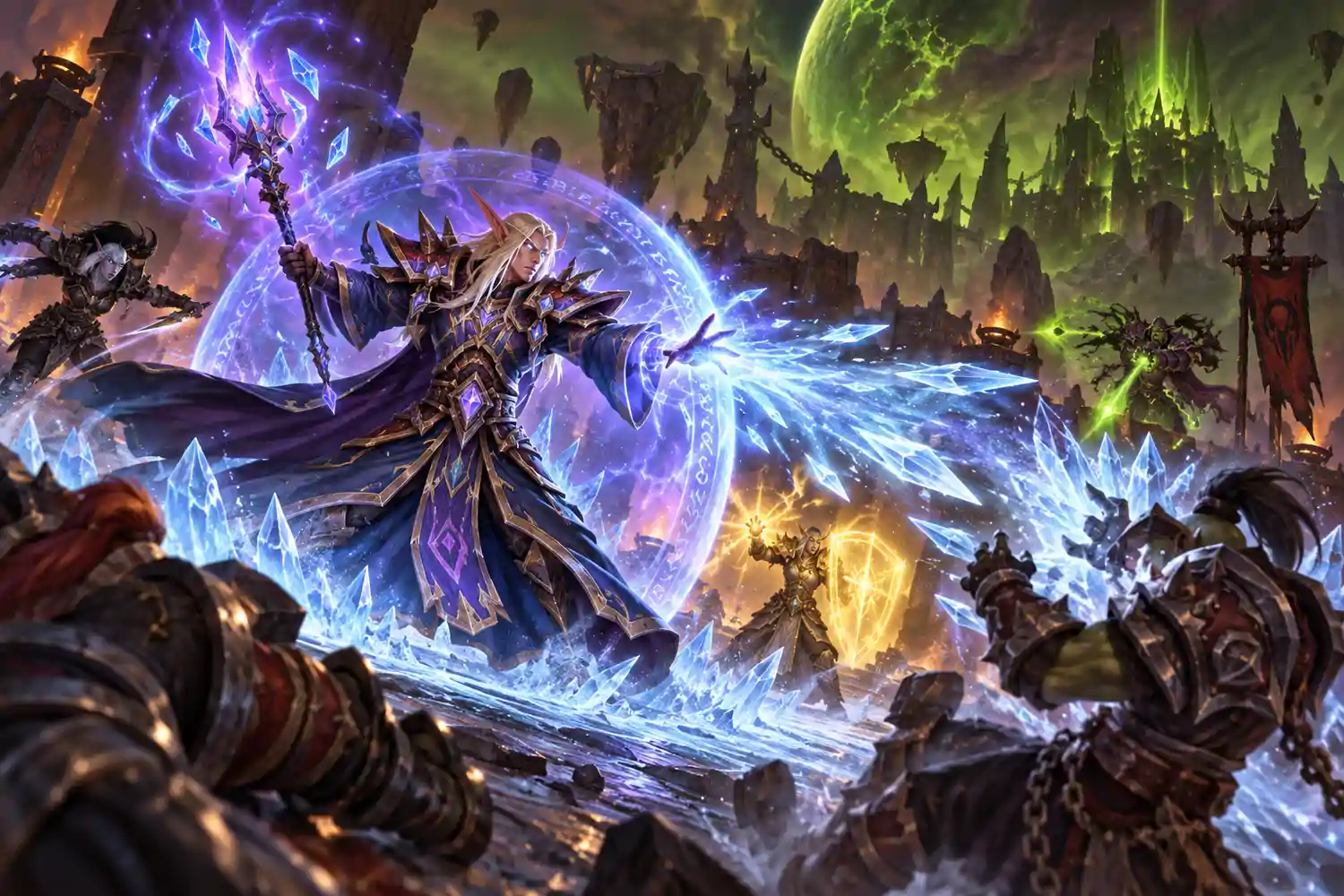
WoW: Midnight brings new challenges and visually rich environments that can sometimes strain your system, leading to drops in frame rates and lag. Smooth performance is key to fully enjoying the game, especially during intense raids, large-scale PvP, or when navigating bustling hubs. Balancing eye-catching visuals with responsive gameplay is crucial for both casual players and hardcore raiders alike.
If you’ve noticed sluggishness or UI delays in Midnight, tweaking your settings can significantly improve your experience. While modern hardware can handle most scenarios, optimizing settings will help maintain consistent FPS, reduce stuttering, and keep your interface responsive when you need it most.
Below, we explore practical adjustments that focus on maximizing performance without sacrificing the clear visuals that make Midnight so immersive.
Start by fine-tuning your graphics settings to strike the right balance. Reducing or disabling some of the more demanding effects can make a big difference:
Shadow Quality: Lowering shadows to medium or low reduces GPU load and helps maintain stable FPS during large encounters.
View Distance: Set it to a moderate range. Too high can cause unnecessary rendering, especially in crowded areas.
Particle Density: Cutting down on particle effects prevents frame dips during spell-heavy fights.
Environmental Detail: Lower settings here can improve performance without a major impact on gameplay clarity.
Anti-Aliasing: Use a balanced setting like FXAA instead of more demanding options to keep visuals smooth without lag.
While visuals are important, the responsiveness of your UI and input commands is equally vital. UI lag can occur when addons are overloaded or when the game is processing too much simultaneous information. Here are some tips to reduce UI delays:
Limit Addons: Use only essential addons during heavy content. Excessive addons increase CPU usage and cause UI lag.
Update Addons: Keep your addons updated to ensure compatibility and efficiency with the latest Midnight patches.
Disable Unnecessary UI Effects: Turn off animations and other non-essential visual effects in the interface settings.
Optimize Network Settings: Use the built-in network diagnostics and adjust settings like "Optimize Network for Speed" to reduce latency that impacts UI responsiveness.
Adjusting your system’s hardware acceleration settings can also help. Enabling or disabling hardware acceleration for the game’s client in your graphics card control panel may resolve occasional input lag or stuttering. Additionally, monitoring background applications that consume CPU or GPU resources ensures your system prioritizes WoW: Midnight.
For players who are short on time or want to focus solely on gameplay rather than repetitive gear or resource management, services like buy Mythic Plus boost can help you quickly obtain high-level rewards while avoiding unnecessary grind. Similarly, if you want to experience endgame encounters without delays, you can get a WoW raid boost and jump straight into the most exciting content.
Finally, keep your game client updated and periodically clear cache files. This can prevent performance degradation caused by corrupted or outdated data. Regular maintenance combined with the above settings adjustments ensures a smoother, clearer, and more responsive WoW: Midnight experience.
Explore more gaming boosting services, guides, and updates on the GoldBoosting homepage.
There are no approved comments yet. Be the first to leave one.